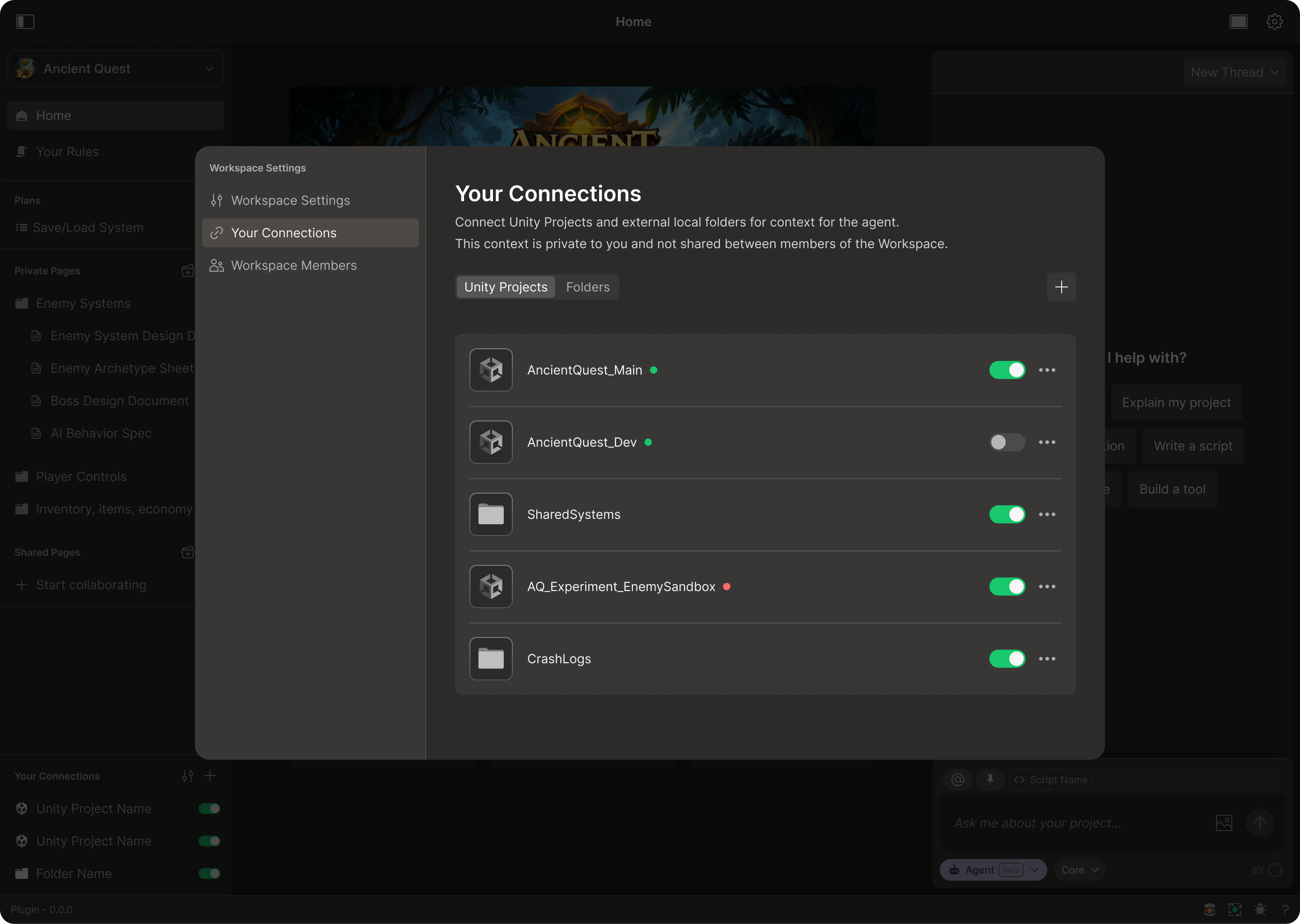
These are the Workspace sources you give Bezi access to read from and write to. All active Connections (projects, local folders) are available as read-only context for work being done in a given Workspace. You can add and manage Connections in Workspace settings.
Connections are private to you, even if you’re working in a Team Workspace. No other person or agent can view or access your Connections.Connection isolation is intentional. It ensures each team member can feed their Bezi agent the exact context needed for their work and won’t be confused by a colleague’s unrelated context.
Connection types
Enable Bezi to reference code or systems from a separate source to expedite work on the project or task at hand. All Connections are read-only context, unless they’re the set as the thread’s target project. Learn more about Target Project in Threads.
Projects
Connect multiple projects to a single workspace. They can be from the same or different engines. Besides linking your primary work environment, this is great for providing your Bezi agent with inspiration, systems to copy, etc..
Local folders
Connect any folders from your local filesystem. Great for cross-platform migrations, asset pipelines, shared utility code, design docs, and any other context you want to give Bezi that lives outside of a project.
Managing Connections
Each Connection adds context for Bezi; monitor active Connections and disable ones that aren’t relevant to a given task.
Adding Connections
- Open the Workspace dropdown (top of the left sidebar)
- Select
Workspace Settings
- Navigate to Your Connections
- Click
+ and select the project or local folder
Disabling or deleting Connections
Use the toggle to disable a Connection from Bezi. This will prevent it from being included in Bezi’s context and being edited in Agent Mode. You can quickly disable and re-enable Connections in the left sidebar as you work.
To permanently remove a Connection from Bezi, open Your Connections and select ... next to the Connection you wish to delete.