
Team Workspaces are only available on Team and Enterprise plans.
Team Workspace structure
Team Workspaces live in a Team, the centralized place for managing licenses, roles, billing, usage and Workspaces. A Team can have multiple Team Workspaces. A Team Workspace’s existence and Shared Pages aren’t visible to anyone not on its Members List. Every Team Workspace has the following:- Workspace Members list; Each Member has equal ability to invite and remove people from the Workspace. Only Team Members can be Workspace Members
- Members; Each Member can view, edit, and create Shared Pages. Each member also has private data for their Bezi agent: Threads, Connections list, Rules and Private Pages
- Shared Pages; All Shared Pages in a Team Workspace, such as one defining UI Standards, can be viewed and modified by all Members (and their Bezi agents) in that Workspace
Shared and private materials
Information that’s specific to individual workflows isn’t shared across Team Workspace members. Threads, Connections, Rules, and Private Pages are private per member. If you want to share a private material with all members (e.g. standardized rules or must-have Connections), tell Bezi to document it as a Shared Page.Creating a Team Workspace
Being in the Team doesn’t automatically put someone in a Team Workspace. Make sure you invite people to collaborate with you.1
Open your Team account
Account settings > Subscription dropdown > select desired Team account 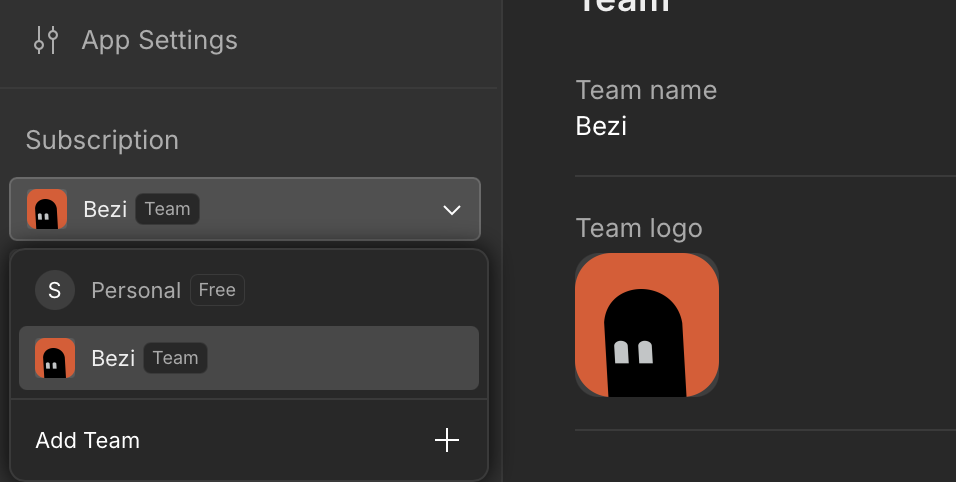
2
Create a Team Workspace
- Open the Workspace dropdown, located at the top of the left sidebar
- Click
New Workspace
3
Adding Team Workspace Members
- Open Workspace dropdown >
Workspace Settings - Select Workspace members
- Invite people to join the Team Workspace (must already be in the Team)
4
Removing members from a Team Workspace
- Open Workspace dropdown >
Workspace Settings - Hover over the member’s name
- Select
...>Remove from Workspace